The user does not exist or is not unique

Many times in the last couple of years I have come across the message "The user does not exist or is not unique."  It is usually on its own, with no other error messages or clues to deciphering its cryptic text.  Generally I have had only limited success in getting past this error, usually getting around it via chance or a rebuild / restore. 

Today when trying to move a Site Collection from a Dev to a Production server we came across this message, it was occuring on just about every stsadm command I ran.  To make matters worse in Central Administration I could not even select the Site Collection.  Obviously at this point a rebuild / restore (my usual methods for dealing with this kind of thing) would not be very helpful being a brand new server, and I was trying to restore a backup anyway.

Even using stsadm I could not set myself as the Site Collection Owner. 

C:Program FilesCommon FilesMicrosoft SharedWeb Server Extensions12BIN>stsadm -o siteowner  -url http://www.site.com -ownerlogin domainadmin

The user does not exist or is not unique.

It turns out that the cause of this was not something unique to production server like I would expect, it was something from the development server that I definitely did not expect.  In this case the Site Collection had been restricted to a specific Active Directory Organizational Unit.  I would not have expected this to be done on a production server, let alone on a development server, and did not go looking for it. 

Even if I had gone looking for it, where would I find it?  It can be found with the following command :

stsadm -o getsiteuseraccountdirectorypath

The "GetSiteUserAccountDirectoryPath" command allows you to lock down a Site Collection to only add new members that are inside the Organization Unit specified when running the command. 

What was fairly unique about this scenario was that in this case, as almost every time I ran any command that referenced the Site Collection I would receive "the user does not exist or is not unique".

To check to see if this property was even set, I ran the command as the Application Pool account for the Web Application. 

C:Program FilesCommon FilesMicrosoft SharedWeb Server Extensions12BIN>runas /noprofile /user:DOMAINapp-pool-acct cmd
Enter the password for DOMAINapp-pool-acct:
Attempting to start cmd as user "DOMAINapp-pool-acct" …

Using this user I was able to successfully confirm that the Site Collection was definitely locked down to a specific OU, which did not even exist in this environment :

C:Program FilesCommon FilesMicrosoft SharedWeb Server Extensions12BIN>stsadm -o getsiteuseraccountdirectorypath -url http://www.site.com

<SiteUserAccountDirectoryPath>ou=team,ou=department,ou=company,DC=domain,DC=com</SiteUserAccountDirectoryPath>

I was then able to unlock the Site Collection from the OU by issuing the following command :

C:Program FilesCommon FilesMicrosoft SharedWeb Server Extensions12BIN>stsadm -o setsiteuseraccountdirectorypath -url http://www.site.com -path ""

Operation completed successfully.

A quick retry of the previous operation was successful and I could once again make myself a Site Collection Administrator. 

C:Program FilesCommon FilesMicrosoft SharedWeb Server Extensions12BIN>stsadm -o siteowner  -url http://www.site.com -ownerlogin DOMAINadmin

Operation completed successfully.

At this point the Operation completed successfully message was a very welcome message. 

While I do not expect that this will be the cause for every instance of this error message, it is a helpful marker that tends to indicate when this error is occuring the Site Collection is unable to find a user object in Active Directory.  If this error occurs I strong recommend looking at anything that may help or hinder access to Active Directory. 

It is also possible this issue could have been resolved by the peoplepicker-serviceaccountdirectorypaths property, however I did not have a chance to try this out.  For more information on that one : http://technet.microsoft.com/en-us/library/cc263012.aspx
Installing CRM 4.0 on Microsoft SQL Server 2008

For anyone who has tried to install CRM 4.0 on a SQL Server 2008 installation you will probably know there are a few checks in the CRM installer that make this installation quite painful.  It took me a few hours of fiddling and going through the install logs carefully to fix the two issues that occurred.

Setup failed to validate specified Reporting Services Report Server.  Error: The operation you are attempting requires a secure connection (HTTPS)

This error is occuring because SQL Reporting Services on 2008 is expecting an SSL connection.  By editing %ProgramFiles%Microsoft SQL ServerMSRS10.MSCRMRPTReportingServicesReportServerrsreportserver.config and changing this line from <Add Key="SecureConnectionLevel" value="2"/> to <Add Key="SecureConnectionLevel" value="0"/> you will stop this requirement.  I do not know of any adverse effects of doing this, so it should be safe to leave in this state, otherwise you may find issues later on when using Reporting Services within CRM.

Check FullTextRunningValidator : Failure: Service msftesql was not found

This error is occuring because CRM 4.0 thinks it needs the SQL Full Text Search service to be installed at the time of installation, but SQL 2008 does away with this service entirely!  To install we need to trick CRM 4.0 into thinking that the service is available and running, we can do this by just hacking at the registry and renaming another service to be "msftesql".  It really does not matter which service you use for this, as long as it is another service that wont be missed in the mean time, as per a forum post I would recommend using the Filter Daemon Host Launcher (MSSQLFDLauncher).

All of the services can be found at HKLMSystemCurrentControlSetServices, just right click and rename to "msftesql". You may need to reboot before this takes effect and don't forget to start the service! Also remember to rename the service back to its original name after the install is completed, there should be no complications from doing this as long as you install the update rollups.

Both of these issues are also listed on this Microsoft article : http://support.microsoft.com/kb/957053/en-us, however the article is a little less than helpful as its solution is installing the CRM Update Rollups that fix the issues.  This turns into a chicken and egg problem as I cannot see any way to install the hotfixes prior to installing CRM, nor have I found how to slipstream the installs to include the update rollups as yet.

And lastly, do not forget to install CRM Update Rollup 5 which was recently released, this rollup contains all the previous updates which address a few of the issues that can be encountered when running CRM on SQL 2008.  Hopefully this posting will help a few people avoid the couple of hours it took me to work around these issues.

ApplicationHost.config error with IIS7, Dot Net 1.1 and Windows Server 2008 Service Pack 2

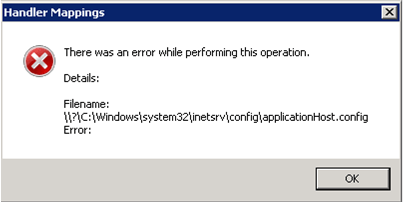
We came across a very odd issue today where the following error message would be displayed within IIS.  The error message itself is not terribly helpful as usual, and there are no other error messages records in any event logs or log files.

 IIS7 Error

This was happening whenever any of the configuration options in IIS7, on a site where the application pool was running Dot Net 1.1.   I immediately spent hours poring over applicationHost.config, as well as any web.config files and configuration files on the server.  Over a day later, after rebuilding the server and IIS7 multiple times I was starting to come to the conclusion that it might be something I had installed, so I ran up another server as a controlled test.

I did this in the following order :

  1. Install Windows Server 2008 Web Edition off a media set that I knew was good.
  2. I installed Windows Server 2008 Service Pack 2.
  3. I installed any missing Hotfixes as determined by our WSUS Server.
  4. I installed IIS using the Web Platform Installer
  5. I installed Dot Net 1.1 and assorted Dot Net 1.1 Service Packs and hotfixes.
  6. I opened IIS, set the default web site to the "ASP.NET 1.1" application pool.
  7. I opened the Default Web Site configuration in IIS manager and attempted to view Handler Mappings.

At this stage the server was a vanilla install with no code on it and I was able to generate the same error as above, and the problem must be one of the above steps.  As we have other Dot Net 1.1 servers running Windows Server 2008 I quickly had a look at their configuration and only one thing stood out – none of them had Windows Server 2008 Service Pack 2.  I immediately uninstalled the Service Pack to see if it would have any effect.  Immediately I was able to browse and modify configuration settings in IIS7!  The question still remains as to what in the Service Pack was causing the problem.  Unfortunately we still have some clients who need to use Dot Net 1.1 and until a resolution or hotfix comes forth, we will not be using Service Pack 2 on any of those servers.

If you come across the error it will only manifest in these conditions and can be resolved quickly by a removal of Service Pack 2.

  • IIS7
  • Windows Server 2008 Service Pack 2 
  • Dot Net 1.1 installed and application pool of Site set to use Dot Net 1.1
  • Trying to view or modify configuration data for the Site

Hopefully this will help a few people to spend less time butting their head against a wall than I did.

Error while publishing CRM 4.0 Workflow

I have seen this error three times now, the first time I made a recommendation to contact Microsoft Premier Support, the second time I worked it out, and this third time I decided it was worth blogging about.

The error is very simply when you attempt to publish a workflow you receive a rather unhelpful "The workflow cannot be published" such as the picture below.  This behavior seems to occur straight after applying an Update Rollup, however seems to occur far more frequently after Update Rollup 3 and 4.

Workflow Error

The following more helpful error is recorded in the Event Log :

Event code: 3005
Event message: An unhandled exception has occurred.
Event time: 6/19/2009 10:53:10 AM
Event time (UTC): 6/19/2009 12:53:10 AM
Event ID: 63e4987779424d0b8eb93fca2566a7cf
Event sequence: 13175
Event occurrence: 6
Event detail code: 0
 
Application information:
    Application domain: /LM/W3SVC/1/ROOT-1-128897723456212507
    Trust level: Full
    Application Virtual Path: /
    Application Path: c:inetpubwwwroot
    Machine name: XXXXXXX
 
Process information:
    Process ID: 9116
    Process name: w3wp.exe
    Account name: NT AUTHORITYNETWORK SERVICE
 
Exception information:
    Exception type: TargetInvocationException
    Exception message: Exception has been thrown by the target of an invocation.
 
Request information:
    Request URL: http://CRM/CRM/_grid/cmds/dlg_activate.aspx?iObjType=4703&iTotal=1&iIndex=0&iId={FC6EF8AE-96F6-427B-9F21-24E9A7E9E85B}
    Request path: /CRM/_grid/cmds/dlg_activate.aspx
    User host address: 10.3.0.146
    User: Username
    Is authenticated: True
    Authentication Type: Negotiate
    Thread account name: NT AUTHORITYNETWORK SERVICE
 
Thread information:
    Thread ID: 1
    Thread account name: NT AUTHORITYNETWORK SERVICE
    Is impersonating: False
    Stack trace:    at Microsoft.Crm.Application.Utility.Util.RaiseXMLError(Exception exception)
   at Microsoft.Crm.Dialogs.ActivateDialogPage.ConfigureForm()
   at Microsoft.Crm.Application.Controls.AppUIPage.OnPreRender(EventArgs e)
   at System.Web.UI.Control.PreRenderRecursiveInternal()
   at System.Web.UI.Page.ProcessRequestMain(Boolean includeStagesBeforeAsyncPoint, Boolean includeStagesAfterAsyncPoint)

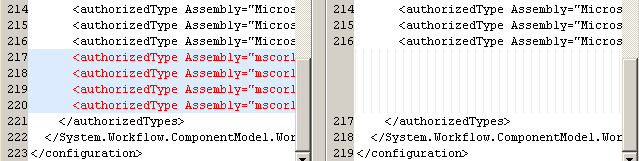
After much digging and poking I finally tried comparing the web.config file of the CRM server experiencing this error to another server which had not yet had an update rollup done, and immediately I noticed a major difference.  There were four lines missing from the AuthorizedTypes section of the config file!

Missing from Auth Types

 Immediately I took a backup of the existing web.config and then added those four lines in, Bingo!  Immediately I was able to publish workflows.  From a bit of research I did after finding this I was able to find out that this problem was thought to be resolved post Update Rollup 2, however judging from these results this is not the case.  Not so easy to find, but very easy to fix.  My suspicion is that the error will only show up when the web.config was previously modified after the initial installation of CRM, which would explain why we are seeing this semi-frequently on hosting environments, especially the ones with a large amount of customizations.

The four lines I applied into the web.config follow :

      <authorizedType Assembly="mscorlib, Version=2.0.0.0, Culture=neutral, PublicKeyToken=b77a5c561934e089" Namespace="System"  TypeName="Void" Authorized="True"/>
      <authorizedType Assembly="mscorlib, Version=2.0.0.0, Culture=neutral, PublicKeyToken=b77a5c561934e089" Namespace="System.Reflection"  TypeName="AssemblyFileVersionAttribute" Authorized="True"/>
      <authorizedType Assembly="mscorlib, Version=2.0.0.0, Culture=neutral, PublicKeyToken=b77a5c561934e089" Namespace="System.Reflection"  TypeName="AssemblyVersionAttribute" Authorized="True"/>
      <authorizedType Assembly="mscorlib, Version=2.0.0.0, Culture=neutral, PublicKeyToken=b77a5c561934e089" Namespace="System.Globalization" TypeName="CultureInfo" Authorized="True"/>

Project Server 2007, Analysis Services 2008 and Building a Cube

A long while ago I put together an article after having a hell of a time getting Project 2007 and SQL Analysis Services 2005 to play nicely together to build a cube, My original post can be found here . The original article got quite a few hits, so I assume that it is something that many people have looked for assistance with.

Now there looks to be an easier way, I am very happy to report that with SQL Server 2008 the process has become amazingly easier, although still a relatively lengthy process. The following Technet article let me get this working in under 30 minutes : . I recommend following this article to the letter, and then trying to build a cube. It worked for me after my own process from my original article did not. 🙂

I cannot recommend enough if you are thinking about going down the road of Project Server 2007 to use SQL Server 2008 rather than SQL Server 2005.

Troubleshooting CRM 4.0 System Jobs

I stumbled across something I'd never noticed before in CRM 4.0 today, I suppose in retrospect it is pretty obvious, but I thought I would mention it anyway.  It is pretty simply the ability to create a custom view that has error messages for your system jobs.

  1. Go to Settings
  2. Go to System Jobs
  3. Click on Advanced Find
  4. Click on Edit Columns
  5. Wait until this page populates, this can take a while
  6. Click Add Columns
  7. Tick "Error Code" and "Messages", and any other relevant fields if you like!
  8. Click "OK" to leave the Add Column View
  9. Click "OK" again to leave the Edit Columns View
  10. Click "Save As" and put in an appropriate name and click "OK"
  11. Exit the wizard
  12. Refresh your system jobs view
  13. Now in the views drop down your new view should be there

Now by using this view, you will be able to see the error code and the error message.  Very handy!

SCVMM 2008 R2 Beta Released!

Wow that was quick!  Not even a week ago and I was talking here, and at a presentation I gave to the Brisbane Infrastructure Group about how the System Center Virtual Machine Manager 2008 R2 Beta would be available within 30 days.  The SCVMM team has definitely not made me a liar, as here it is already!

https://connect.microsoft.com/Downloads/Downloads.aspx?SiteID=799

So hit up connect now and give it a whirl!  If you are worried about not having the infrastructure to give this a try, then try running it on a virtual machine as this is a supported configuration, even better, on connect you can actually download a VHD file with SCVMM 2008 R2 Beta pre-installed and configured, ready to rock.

If you still aren't convinced, then check out the feature list from my last blog post : 

Support for new features of Windows Server 2008 R2 Beta

  • Live Migration: – Seen through the VMM console, this enables administrators to move virtual machines from one machine in a virtual host cluster to another with no downtime. This allows administrators greater flexibility in responding to planned or unplanned downtime, provides higher machine availability and more robust fault tolerance within virtualized infrastructure. The basic requirements for Live Migration are that all hosts must be part of a cluster and host processors must be from the same manufacturer.  Additionally all hosts in the cluster must have access to shared storage.  No changes are required to existing virtual machines, network, or storage devices in moving from Quick Migration to Live Migration other than upgrading to beta versions of Windows Server 2008 R2 and VMM 2008 R2.
  • Hot addition/removal of VHDs:  Allows the addition and removal of new virtual hard disks (VHDs) on a running virtual machine.  This enables storage growth in virtual machines without downtime.  Additionally, ?live? VHD management allows administrators to take advantage of additional backup scenarios and readily use mission critical and storage-intense applications (eg: SQL Server and Exchange).
  • New optimized networking technologies: VMM 2008 R2 Beta supports two new networking technologies ? Virtual Machine Queue (VMQ) and TCP Chimney ? providing increased network performance while demanding less CPU burden.  NICS that support VMQ, create a unique virtual network queue for each virtual machine on a host that can pass network packets directly from the hypervisor to virtual machine. This speeds throughput as it bypasses much of the processing normally required by the virtualization stack. With TCP Chimney, TCP/IP traffic can be offloaded to a physical NIC on the host computer reducing CPU load and improving network performance.

 Enhanced storage and cluster support

  • Clustered Shared Volumes (CSV): Provides a single, consistent storage space that allows virtual hosts in a cluster to concurrently access virtual machine files on a single shared logical unit number (LUN). CSV eliminates the previous one LUN per virtual machine restriction and coordinates the use of storage with much greater efficiency and higher performance. CSV enables the Live Migration of virtual machines in and out of the shared LUN without impacting other virtual machines. Enabling CSV on failover clusters is straightforward and easy to monitor through the VMM administrator?s console; many storage configuration complexities prior to CSV have been eliminated.
  • SAN migration into and out of clustered hosts: This allows virtual machines to migrate into and out of clustered hosts using a SAN transfer, which automatically configures the cluster nodes to recognize and support the new workload.
  • Expanded Support for iSCSI SANs:  Previously, only one LUN could be bound to a single iSCSI target whereas now — with VMM 2008 R2 Beta — multiple LUNS can be mapped to a single iSCSI target.    This provides broader industry support for iSCSI SANs allowing customers more flexibility in choosing storage providers and iSCSI SAN options.

Streamlined process for managing host upgrades:

  • Maintenance Mode:  Allows administrators to apply updates or perform maintenance on a host server by safely evacuating all virtual machines to other hosts on a cluster using Live Migration or putting those workloads into a saved state to be safely reactivated when maintenance or upgrades are complete. Maintenance mode is enabled for all supported hypervisor platforms on Windows Server 2008 R2 Beta.

Other VMM 2008 R2 Beta enhancements

  • Support of disjoint domains:  Reduces the complexity of reconciling host servers with differing domain names in Active Directory and DNS.  In these situations, VMM 2008 R2 Beta automatically creates a custom service principal name (SPN) configured in both AD and DNS allowing for successful authentication. 
  • Use of defined port groups with VMware Virtual Center:  On installation, VMM 2008 R2 Beta will present available port groups for VMM?s use with VMware Virtual Center thus allowing administrators to maintain control over which port groups are used.

SCVMM 2008 R2 Beta registration open

Beta registration for System Center Virtual Machine Manager 2008 R2 was released just today!

https://connect.microsoft.com/SelfNomination.aspx?ProgramID=3021&pageType=1&SiteID=799

The registration page also lists some of the features of SCVMM 2008 R2, which will tie in pretty heavily with the new Hyper-V on Windows Server 2008 R2

Support for new features of Windows Server 2008 R2 Beta

  • Live Migration: – Seen through the VMM console, this enables administrators to move virtual machines from one machine in a virtual host cluster to another with no downtime. This allows administrators greater flexibility in responding to planned or unplanned downtime, provides higher machine availability and more robust fault tolerance within virtualized infrastructure. The basic requirements for Live Migration are that all hosts must be part of a cluster and host processors must be from the same manufacturer.  Additionally all hosts in the cluster must have access to shared storage.  No changes are required to existing virtual machines, network, or storage devices in moving from Quick Migration to Live Migration other than upgrading to beta versions of Windows Server 2008 R2 and VMM 2008 R2.
  • Hot addition/removal of VHDs:  Allows the addition and removal of new virtual hard disks (VHDs) on a running virtual machine.  This enables storage growth in virtual machines without downtime.  Additionally, ?live? VHD management allows administrators to take advantage of additional backup scenarios and readily use mission critical and storage-intense applications (eg: SQL Server and Exchange).
  • New optimized networking technologies: VMM 2008 R2 Beta supports two new networking technologies ? Virtual Machine Queue (VMQ) and TCP Chimney ? providing increased network performance while demanding less CPU burden.  NICS that support VMQ, create a unique virtual network queue for each virtual machine on a host that can pass network packets directly from the hypervisor to virtual machine. This speeds throughput as it bypasses much of the processing normally required by the virtualization stack. With TCP Chimney, TCP/IP traffic can be offloaded to a physical NIC on the host computer reducing CPU load and improving network performance.

 Enhanced storage and cluster support

  • Clustered Shared Volumes (CSV): Provides a single, consistent storage space that allows virtual hosts in a cluster to concurrently access virtual machine files on a single shared logical unit number (LUN). CSV eliminates the previous one LUN per virtual machine restriction and coordinates the use of storage with much greater efficiency and higher performance. CSV enables the Live Migration of virtual machines in and out of the shared LUN without impacting other virtual machines. Enabling CSV on failover clusters is straightforward and easy to monitor through the VMM administrator?s console; many storage configuration complexities prior to CSV have been eliminated.
  • SAN migration into and out of clustered hosts: This allows virtual machines to migrate into and out of clustered hosts using a SAN transfer, which automatically configures the cluster nodes to recognize and support the new workload.
  • Expanded Support for iSCSI SANs:  Previously, only one LUN could be bound to a single iSCSI target whereas now — with VMM 2008 R2 Beta — multiple LUNS can be mapped to a single iSCSI target.    This provides broader industry support for iSCSI SANs allowing customers more flexibility in choosing storage providers and iSCSI SAN options.

Streamlined process for managing host upgrades:

  • Maintenance Mode:  Allows administrators to apply updates or perform maintenance on a host server by safely evacuating all virtual machines to other hosts on a cluster using Live Migration or putting those workloads into a saved state to be safely reactivated when maintenance or upgrades are complete. Maintenance mode is enabled for all supported hypervisor platforms on Windows Server 2008 R2 Beta.

Other VMM 2008 R2 Beta enhancements

  • Support of disjoint domains:  Reduces the complexity of reconciling host servers with differing domain names in Active Directory and DNS.  In these situations, VMM 2008 R2 Beta automatically creates a custom service principal name (SPN) configured in both AD and DNS allowing for successful authentication. 
  • Use of defined port groups with VMware Virtual Center:  On installation, VMM 2008 R2 Beta will present available port groups for VMM?s use with VMware Virtual Center thus allowing administrators to maintain control over which port groups are used.

 Really looking forward to this one, it has the possibility of turning SCVMM 2008 into a real competitor for vmWare's Virtual Center.

Presenting this month at two user groups.

Just a quick update as I will be presenting this month at two usergroups.

On Tuesday 10th March I will be presenting on System Center virtual Machine Manager 2008 at Brisbane Infrastructure Group

Session #2, Hosting and Self Provision of Virtual Machines with SCVMM w/ Mark Rhodes

Hosting virtualized servers is easy, especially with tools like SCVMM 2008, but giving tools to clients to manage those servers is more difficult.  Mark will demonstrate what his production SCVMM 2008 self-service portal and what you can do with it.  In addition to this he will also about some of the functions he has used since implementing SCVMM 2008 (i.e. P2V, V2V, Archiving of old servers, Managing Checkpoints)

 Mark will also share some of those ?notes from the field? he encountered that may not be immediately obvious during his deployment.

This one is on at 5:30pm at Microsoft's Brisbane office.I will also be presenting at the Brisbane Sharepoint Users Group on the 18th.  I will be talking about hosting, as yet I do not have an abstract on this, but most likely I will cover the benefits of hosting, basic hosting technology and the future of hosted services.This one is at 12:30 at Microsoft's Brisbane Office.

Content Deployment Error – There is no web named "".

Content deployment seems to be one of those topics that a lot of people tend to avoid, this is most likely because it has a whole host of nuances and subtleties that can make it seem buggy or unusable.

In the spirit of documenting the little quirks of content deployment, here is one I encountered just this week. 

The Execute method of job definition Microsoft.SharePoint.Publishing.Administration.ContentDeploymentJobDefinition (ID d3d7ac13-f785-4f03-8a73-88505cf6ec7b) threw an exception. More information is included below.

There is no Web named "".

I coaxed this error out from a failing content deployment job after chasing wild geese in the form of two error messages :

Publishing: Content deployment job failed. Error: 'System.ArgumentOutOfRangeException: The specified indexer value for this collection could not be found or is not unique.
Parameter name: jobId

and

The Execute method of job definition Microsoft.SharePoint.Publishing.Administration.ContentDeploymentJobDefinition (ID ac28b255-0933-4ba0-9458-20bf97f6fcf9) threw an exception. More information is included below.

The specified indexer value for this collection could not be found or is not unique.
Parameter name: jobId

Getting past those two errors was simply restarting the WSS Search and Office Search services via Services, and then starting them up again via Stsadm.  Immediately after this upon the next content deployment push I saw the initial error message with "There is no web named """.

The cause of the message was the transaction log on the database running out of space.  I have seem this happen before if the content deployment push is a large one, in one case we saw the transaction log blow out to over 50 gigabytes in less than an hour.

In this particular case it was because the transaction log was set to autogrow with a maximum size of 6 gigabytes.  As soon as the transaction log was truncated via a SQL backup there was space available and the content deployment could continue!

For sites using Content Deployment regularly I would recommend plenty of disk space, an unlimited transaction log size, and regular incremental backups to ensure the logs are truncated regularly.