Enabling or Disabling Claims Based Authentication

If you have already provisioned a Web Application then it may not be immediately obvious how to change the authentication over to Claims (or revert back to Classic) as this cannot be done within the GUI and can only be done within PowerShell.

Note : To do this you will need to load PowerShell and the SharePoint 2010 snap-in.

To Enable Claims :

$webApp = Get-SPWebApplication "http://webapplicationurl"
$webApp.UseClaimsAuthentication = 1;
$webApp.Update()

And to revert back to Classic mode authentication just change the 1 to a 0 :

$webApp = Get-SPWebApplication "http://webapplicationurl"
$webApp.UseClaimsAuthentication = 0;
$webApp.Update()

Fairly easy, but not immediately obvious 🙂
South East Asia SharePoint Conference 2010

After an extremely successful SharePoint conference earlier this year in Sydney run by the fantastic folks at SPEvents, it looks like there is going to be a South East Asia SharePoint Conference around October of this year!

The conference is going to be in Singapore on the 26th and 27th of October this year at the Grand Copthorne Waterfront Hotel.

The site is up and can be viewed at http://www.sharepointconference.asia/ and has details of the location, speakers, sponsors and more.

More details of the event can also be found at the following sites :

Linkedin: http://events.linkedin.com/SharePoint-Conference-South-East-Asia/pub/364552
Facebook: http://www.facebook.com/pages/SharePoint-Conference-South-East-Asia/135980859759693
Twitter: #SPCSEA @spcsea

If you are in South East Asia and have the opportunity to attend this conference, do not miss out!   For a wrap up of the Australian conference check out my post here

A new home for my blog!

After spending the last couple of years working on a Community Server blog, I decided the best thing to do moving forward was to find a new home for my blog.

Unfortunately the version of Community Server I was using was old and fairly unusable for anything but the most basic functions.  After much deliberating I decided to move to a hosted WordPress blog, and wow I really do not regret my decision for an instant!

The most difficult part of the move was the migration of all the posts and images, this being due to the lack of functionality on Community Server.  I had to do the following to migrate :

  1. Extract all the posts from the Community Server database.
  2. Format extracted posts nicely into a CSV file
  3. Run up a Virtual Machine
  4. Install WordPress (Self-Hosted) version onto it – Use the Web PlatForm Installer for this
  5. Install the CSV Importer plug-in to wordpress
  6. Import the CSV
  7. Export a WordPress Format
  8. Tidy up any links etc, remove capitalization, remove any HTML characters
  9. Import to Hosted WordPress
  10. Upload all images
  11. One by One fix image links

This process took me a few nights to do, but was well worth it.

It only took me 3 or 4 minutes to register a domain through them as well!  And only at a cost of $5, which is amazing, I was absolutely blown away by just how simple and easy the entire process was.   It is the perfect model of how Hosted applications should work!

Anyhow, here it is at its new home – http://www.mrhodes.net.

Storing your OneNote notebooks in the Cloud, the easy way!

This morning I spent some time re-organising my OneNote notebooks, something I had not done with OneNote 2010 until now and also something that was desperately needed – the ability to publish straight out of the box into the cloud without requiring anything but a Live ID!

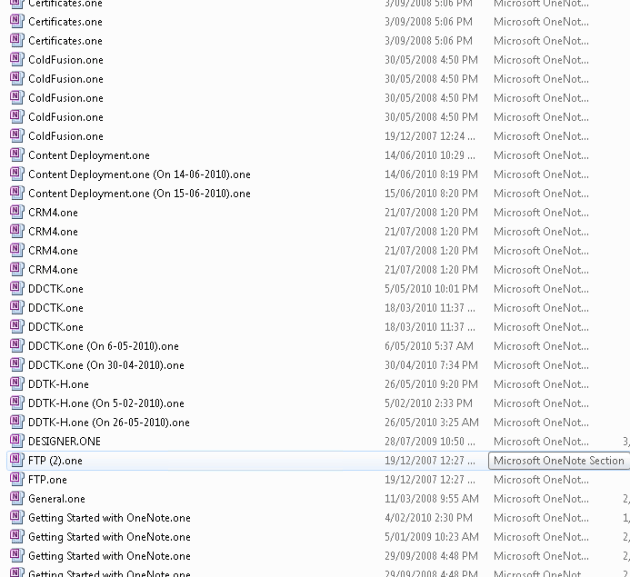
Having multiple computers one of the annoyances I had with 2007 was keeping my notebooks in sync.  Until now the best way was either a fileshare on a network drive, or storing the files within a SharePoint library.  Unfortunately one of those does not lend itself well to someone who rarely connects to a single network, and the other one can be cost prohibitive.  The result?  Multiple copies of the same files!

Before too long your one note folders start to look like this.

Today when I created a brand new notebook I noticed that there was a “Web” button now in OneNote 2010 and by clicking on this it is now staggeringly simple to have a notebook which is sync’d straight from your skydrive simply by entering your Live credentials!

This is probably the most exciting feature for me of all the additions in Office 2010, and it is going to make my life a breeze.  Nice work to the Office Team!