Publishing Service Applications between SharePoint 2010 Farms ? Part 2

Foreword : Huge thanks to Todd Klindt for sending me a sneak preview chapter of his and Shane Young’s new book.  Their chapter on Service Applications helped me to work through and figure out why this process was not initially working for me as it is extremely finicky and will fail if the ordering of these items is incorrect.

In Part 1 I discussed how to create a trust between farms, establish permissions, publish a service application and finally consume it from a remote farm all through

PowerShell, well mostly through PowerShell. So there are a few downsides with that, sure its easy and repeatable but to a lot of people it is not terribly friendly.  There is also the fact that while it works, in situations where there are issues PowerShell will smile and let you continue blindly down the path while you might not realise that the end process is going to fail.

So with all of that in mind, how do we publish Service Applications between SharePoint 2010 farms in Central Administration”  Well not all of it can be done easily through Central Administration.

The first few steps “exporting the certificates” still need to be done in PowerShell.

1. Export and copy all certificates between Farms

First off, lets do steps 1-5 from Part 1 (https://mrhodes.net/2010/05/19/publishing-service-applications-between-sharepoint-2010-farms-part-1-8/)

This should get us to the point where all certificates have been exported and are ready to be imported on their respective servers.

2. Import root certificate from PROVIDER to CONSUMER

On the CONSUMER farm:

Open up Central Administration, and browse to “Security” then click on “Manage Trust”

Click “New” on the ribbon.
A new screen should pop up labelled “Establish Trust Relationship”.  Put in the name.  I generally use “PROVIDER [FARM NAME]” to denote a certificate imported from a PROVIDER farm, and vice versa for CONSUMER.
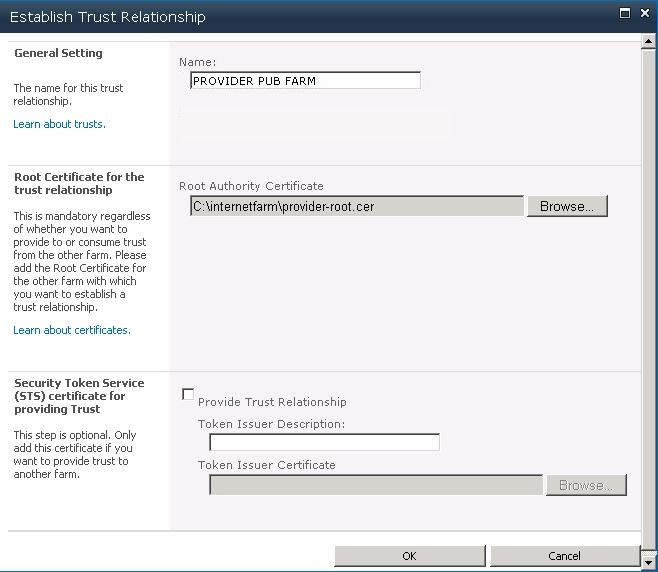
Next click “Browse” and select the “Provider-root.cer” file that was exported to c:certificates

Do not tick the box for “Provide Trust Relationship” or upload another cert as this is all you need on the consumer farm.

Click “OK” and you should now have a new Consumer trust established.

2. Import Root and STS certificates from CONSUMER to PROVIDER

On the PROVIDER farm:

As per the previous steps open up Central Administration, and browse to “Security” then click on “Manage Trust”, then click “New” on the ribbon.
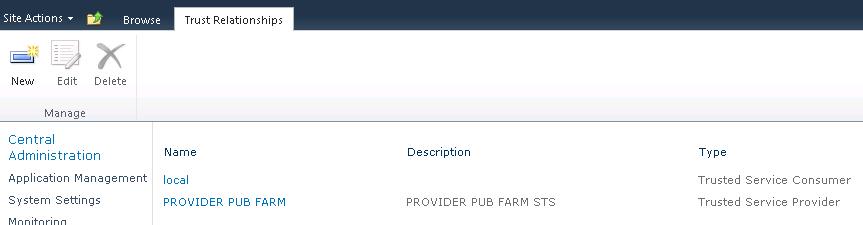
The “Establish Trust Relationship” screen should appear.  Put in the name, this time lead with “CONSUMER [FARM NAME]”

Next click “Browse” and select the “Consumer-root.cer” file that was exported to c:certificates.

Under “Token Issuer Description” put in a description such as “CONSUMER [FARMNAME] STS”

Tick the box for “Provide Trust Relationship” and click “Browse” to upload the “Consumer-STS.cer” from c:certificates

Click “OK”
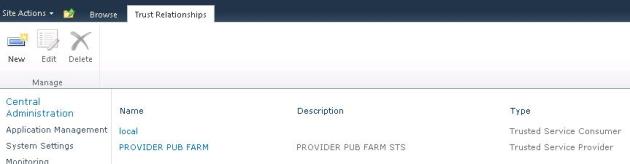
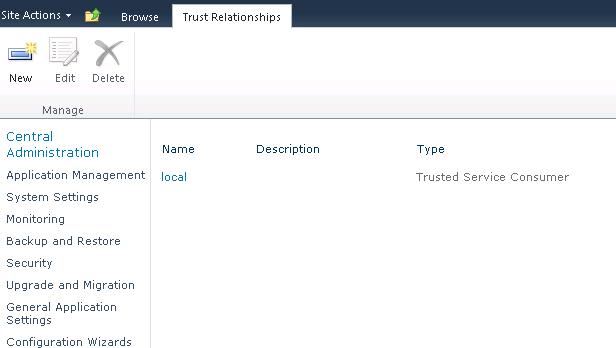
You should now have a new trust appearing on your provider.

Note : On a farm providing services, the trust will be labelled as “Trusted Service Provider” and on a farm consuming services, the trust will be labelled as “Trusted Service Consumer”.  Please note that this denotes the trust itself, not the certificates or the farm, hence why the naming may seem confusing.

3.  Establish Consumer Farm permissions on Provider Farm

At this point we really need to return to PowerShell to do steps 10 and 11 from the previous blog post.  It is a bit annoying, but unfortunately I don’t know of any way to establish the permissions, or even retrieve the farm ID from Central Administration.

4. Check that the permissions have been established.

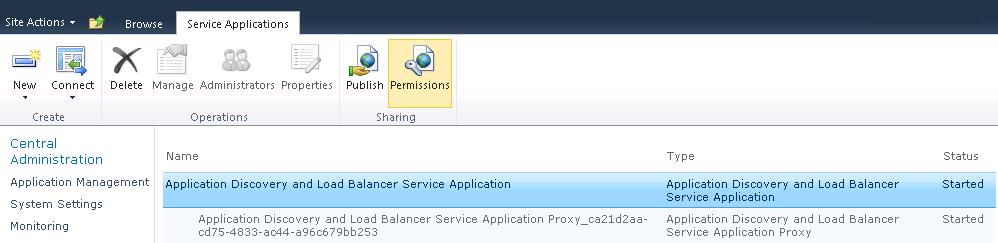
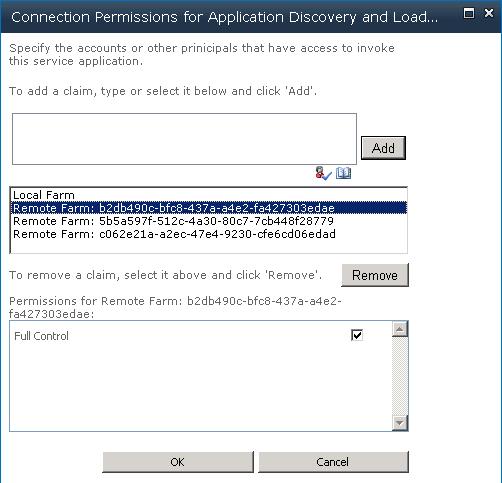
On the provider farm you can check to ensure the permissions have been granted successfully by loading up Central Administration and going to “Manage Service Applications”.

Click on “Application Discovery and Load Balancer Service Application” and click “Permissions” from the ribbon.

Your farm GUID should be listed in here with full permissions.
5. Publish a Service Application

On your Provider Farm :

Browse to Service Applications, select the application you wish to publish and click “Publish” on the ribbon.
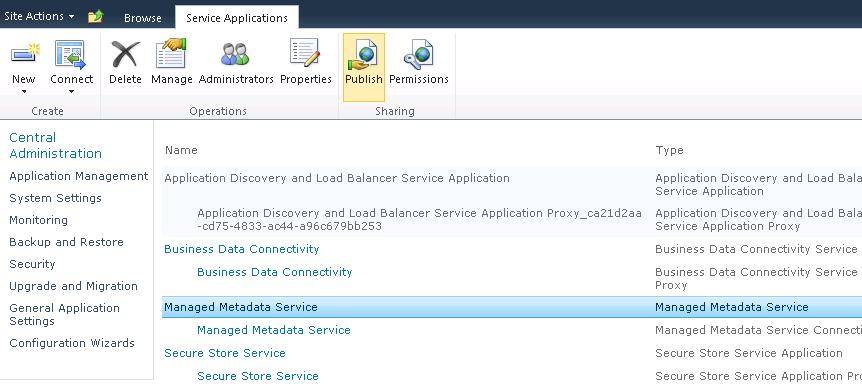
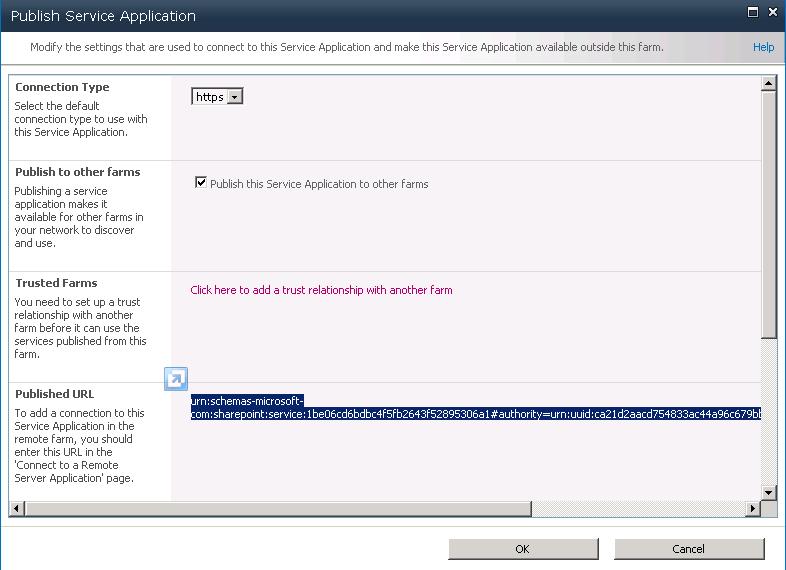
Then select the connection type, check the checkbox “Publish this service application to other farms” and be sure to copy out your Published URL to your clipboard.
6. Connect to a Service Application

On your CONSUMER farm:

Open Central Administration and browse to “Manage Service Applications”
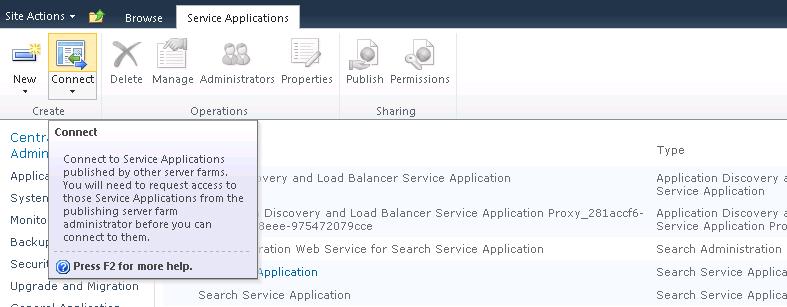
Click on “Connect” from the ribbon and select the appropriate Service Application Proxy Type.
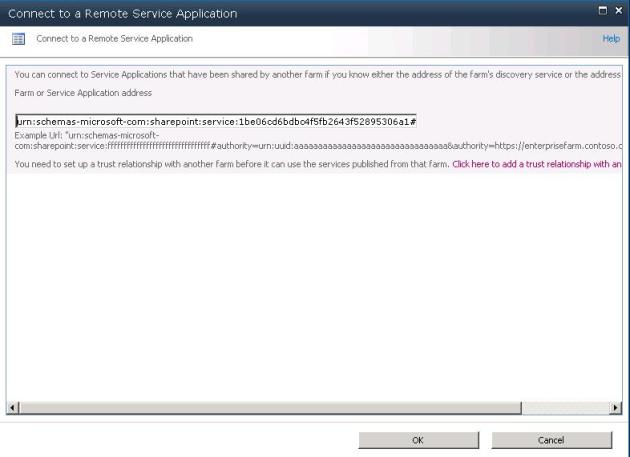
Paste in the URL you copied in the last step from the Provider’s Farm and Click “OK”
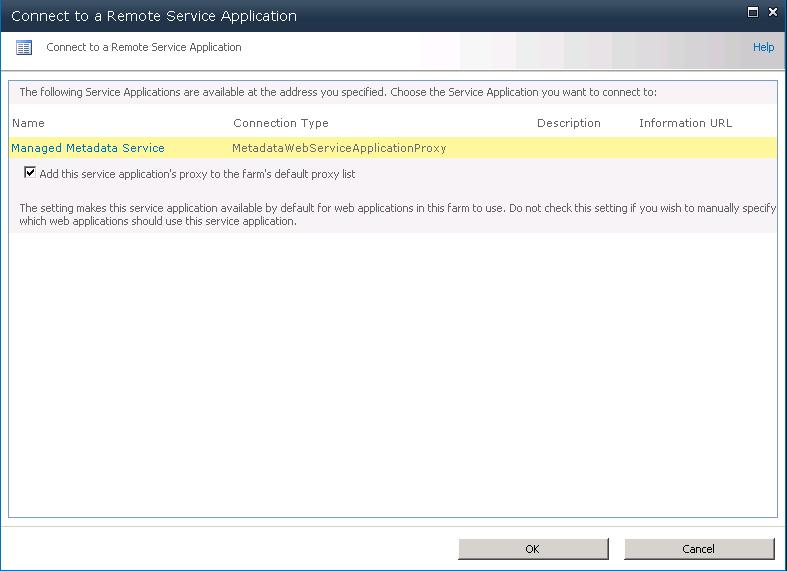
After a few seconds it should come back with the below screen.  Select the application and click “OK”
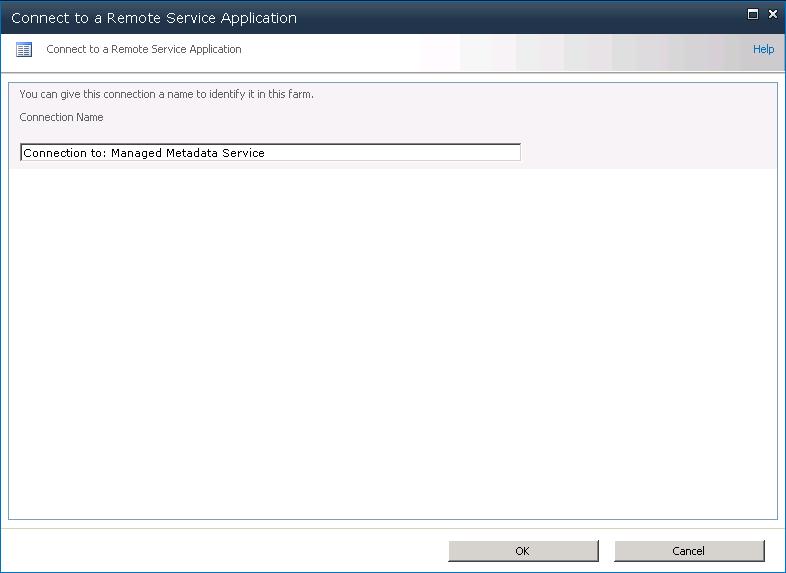
Choose an appropriate name and click “OK”
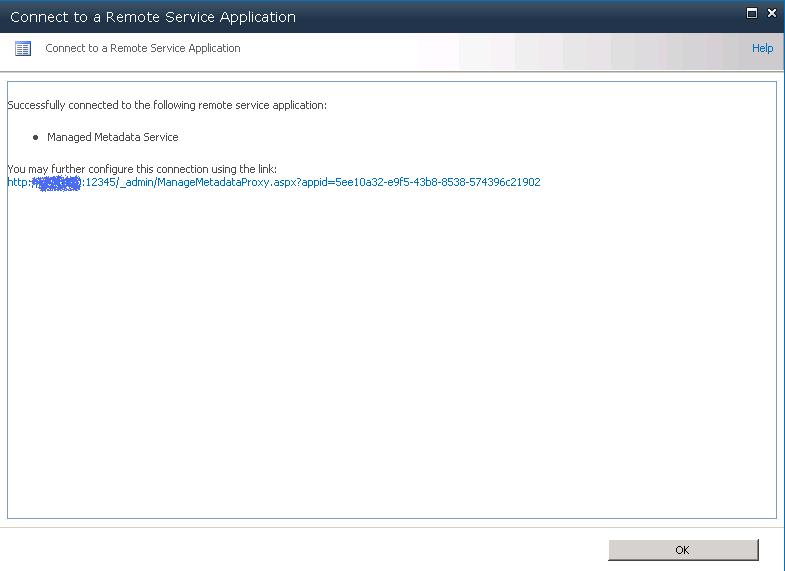
Congratulations, your service application is connected.  Click “OK”

7. Connected Service Application Properties

Now select your new service application and click “Properties” from the ribbon.
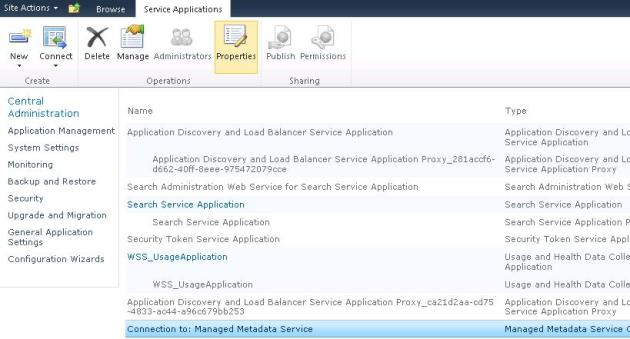
You should see a screen that depending on the service application will allow you some degree of customization.   For example,this is for a Managed Metadata Service Connection :

If you can see this screen and edit the properties then you can be fairly confident the connection has worked successfully!

I personally find that the easiest way to do this on a repeatable basis is via PowerShell, however in almost all situations I will use Step 7 from this post to connect as it is just easier, and if for some reason it fails then it will actually tell you.

While none of these steps is especially difficult, putting them together in a cohesive order that works every time took a bit of juggling.  I hope these posts have been helpful.
Publishing Service Applications between SharePoint 2010 Farms – Part 1

Foreword : This post has been updated as while it did appear to be working successfully was actually not.  Huge thanks to Todd Klindt for sending me a sneak preview chapter of his and Shane Young?s new book.  Their chapter on Service Applications helped me to work through and figure out why this process was not working for me as it is extremely finicky and will fail if the ordering of these items is incorrect.

I have spent some time recently trying to publish service applications between two different SharePoint 2010 farms.  There is a fairly detailed guide on how to accomplish this over on technet at http://technet.microsoft.com/en-us/library/ff621100.aspx however it seems the articles are incorrect or at least they did not work as expected for me.

I noticed a few problems immediately, one of them being that at least one command is no longer available in the RTM version of SharePoint 2010, this aside it was fairly easy to figure out the replacement commands.  However not just the commands are an issue here, it seems as though the entire process is incomplete.

After spending a lot of time tweaking and investigating how the actual process is meant to work, I found that the problem lay in trust between the farms, In order to consume a service from a remote farm, both farms must have their root certificates installed on each other, and the Consumer farm must have its Secure Token Service certificate installed onto the Providers farm.

Here is my guide on how to publish service applications between farms via PowerShell :

Note : In order to keep things simple, the PROVIDER farm is the Green Powershell Window.  The CONSUMER  farm is the Blue PowerShell Window.

1. On a server in both farms make a directory called certificates on C: – this is just to keep the certificates in one place.

2. Export root certificate from CONSUMER

$rootCert = (Get-SPCertificateAuthority).RootCertificate
$rootCert.Export(“Cert”) | Set-Content c:\certificates\consumer-root.cer -encoding byte

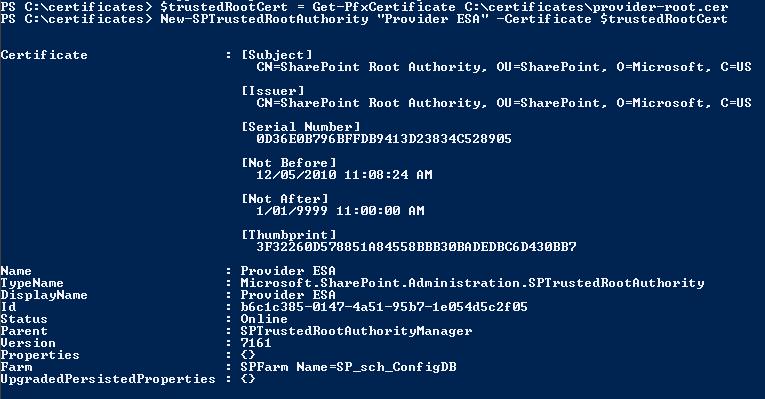
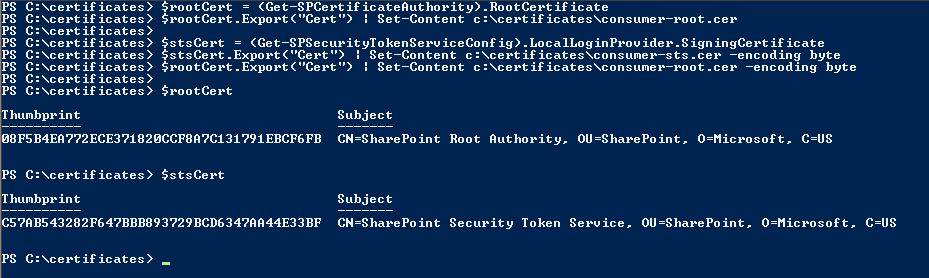
(See Screenshot below)

3. Export STS Certificate from CONSUMER

$stsCert = (Get-SPSecurityTokenServiceConfig).LocalLoginProvider.SigningCertificate
$stsCert.Export(“Cert”) | Set-Content c:\certificates\consumer-sts.cer -encoding byte

** Note : You might notice that I am checking out to make sure the $rootCert and $stsCert variables contain the certificate.  I’ve had it not work a few times, so just like to double check prior to exporting a null variable, which will working quite successfully until you try to find the .cer file.

4. Export root certificate from PROVIDER

$rootCert = (Get-SPCertificateAuthority).RootCertificate
$rootCert.Export(“Cert”) | Set-Content c:\certificates\provider-root.cer -encoding byte


5. Copy certificates between farms

Copy the contents of the c:certificates directory to the other farms.  I don’t think I need to tell you how to do this 🙂

6. Import root certificate from PROVIDER to CONSUMER

$trustedRootCert = Get-PFXCertificate c:\certificates\provider-root.cer
New-SPTrustedRootAuthority “PROVIDER <FARM NAME>” -Certificate $trustedRootCert

7. Import root certificate from CONSUMER to PROVIDER

$trustedRootCert = Get-PFXCertificate c:\certificates\consumer-root.cer
New-SPTrustedRootAuthority “CONSUMER <FARM NAME>” -Certificate $trustedRootCert

8. Import STS certificate from CONSUMER to PROVIDER

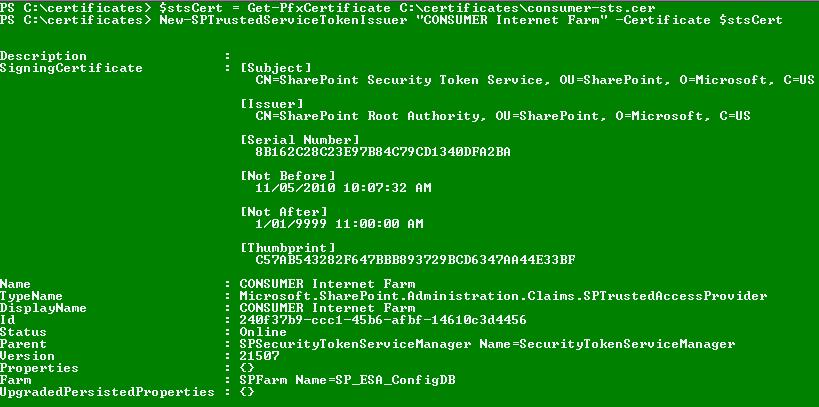
$stsCert = Get-PFXCertificate c:\certificates\consumer-sts.cer
New-SPTrustedServiceTokenIssuer “CONSUMER <FARM NAME>” -Certificate $stsCert

9. Publish Service Application

The easiest way to do this is through Central Administration, as it will allow you to select HTTP or HTTPS, as well as and paste the appropriate URI to connect to the topology application.  This URI is a really really long one, make sure you copy the whole thing!

Browse to Service Applications, select the application you wish to publish and click “Publish” on the ribbon.

Then select the connection type, check the checkbox “Publish this service application to other farms” and copy out your Published URL.

10.  Retrieve Farm ID from Consumer Farm

(Get-SPFarm).ID

This will retrieve the GUID of the Consuming Farm.  Keep this for the next step.

11.  Grant Consumer Farm permissions

Note : This step was sourced from http://harbar.net/archive/2010/05/03/service-application-federation-with-sharepoint-2010.aspx – Huge thanks to Spencer as it helped me to get through the exact error listed on his post.

$security = Get-SPTopologyServiceApplication | Get-SPServiceApplicationSecurity
$claimProvider = (Get-SPClaimProvider System).ClaimProvider
$principal = New-SPClaimsPrincipal -ClaimType
http://schemas.microsoft.com/sharepoint/2009/08/claims/farmid -ClaimProvider $claimProvider -ClaimValue <farmid>
Grant-SPObjectSecurity -Identity $security -Principal $principal -Rights “Full Control”
Get-SPTopologyServiceApplication | Set-SPServiceApplicationSecurity -ObjectSecurity $security

12.  Check Load Balancer Permissions

You can check to ensure the permissions have been granted successfully by loading up Central Administration on your provider farm, going to ?Manage Service Applications?.

Click on ?Application Discovery and Load Balancer Service Application? and click ?Permissions? from the ribbon.

Your farm GUID should be listed in here with full permissions.

13. Connect to Service Application

Note : I would highly recommend performing this step via Central Administration unless you have done this more than once.  Doing this step via PowerShell can result in no error messages, however the connection may not be established correctly.  Using Central Administration ensures that a error message will be given on failure.  Please see Step 7 of Part 2 of this series for information on how to do this.

New-SPMetadataServiceApplicationProxy -Name “<FARM NAME> Managed Metadata” -Uri “<Insert Service Topology Uri from step 8.>”

Note : This last step will vary based on the service application you wish to publish.  The command should stay in the format “New-SP<ServiceName>ApplicationProxy” and the parameters may vary (some use URL, some use URI)

There we have it!  We have succesfully published a Service Application from one farm to another

In Part 2 I will show you how to do this via Central Administration for the folks who prefer a GUI.

I’m speaking at the Australian SharePoint Conference in June, are you going?

Hey Folks,

Just a really quick note to let you know that I'm going to be speaking at the Australian SharePoint Conference in Sydney June 2010.

I will be doing a presentation on Content Deployment Bootcamp, specifically aimed at helping people understand Content Deployment, and keeping it running smoothly in the long term with SharePoint 2010.

Content Deployment BootCamp – 200 Level
Content Deployment is one of the final frontiers where SharePoint administrators fear to tread. Mark will explore Content Deployment from its origins to what to expect with SharePoint 2010 and covers his experiences when using content deployment in production environments, including tips and tricks to get your content deployment running smoothly, and how to keep it that way!

More information about the conference can be found at : http://www.sharepointconference.com.au
Follow the official twitter account for the conference on http://www.twitter.com/AUSharePoint (@AUSharePoint)

See you there!